





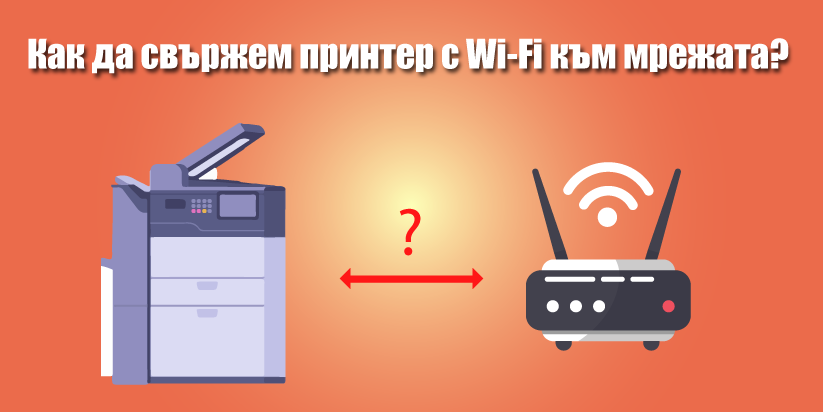
Connecting a printer to a wireless network is a convenient and modern way to use your device from anywhere in your home or office. Thanks to this feature, you can print from a laptop, phone, or tablet without the need for cables. The process is not complicated but requires following a few important steps to ensure a stable and secure connection with your router.
In the following lines, you will find a detailed guide to help you set up your printer correctly and connect it successfully to your Wi-Fi network.
Preparing the printer before connection
Before starting the connection process, make sure your printer is ready to operate. This includes a few simple but essential actions:
-
Ensure the printer is turned on and ready for use. Check that there is paper in the tray and enough ink or toner.
-
Check whether your model supports Wi-Fi functionality. This is usually indicated by a button with an antenna icon or the word “Wireless.”
-
Place the printer near the router (within 3–4 meters) to ensure a strong signal during the initial setup.
After confirming these basic conditions, you can proceed to the next step – setting up the wireless connection itself.
Checking the wireless network
Before starting the connection, make sure your internet network is stable and that you have the necessary information. Without this preparation, the process may be difficult.
Check whether your router is working properly and providing internet access. Find your network name (SSID) and the password you use to connect. Also, check that no restrictions for new devices (such as MAC filtering) are enabled in your router’s settings.
Once you have confirmed that the network is accessible and stable, you can safely proceed to connect your printer to Wi-Fi.
Setting up the printer’s Wi-Fi connection
This is the main part – connecting the printer to the network. Although the menus of different brands may look different, the steps are nearly identical across most models. Here are the universal steps you can follow:
-
Open the network settings menu from the printer’s display.
Look for a section called “Network,” “Wireless,” or “Wi-Fi Setup.” -
Select the wireless connection option.
Usually named “Wireless Setup Wizard” or “Wi-Fi Setup.” -
The printer will start searching for available networks.
After a few seconds, a list of SSIDs (Wi-Fi network names) will appear on the screen. -
Select your network and enter its password.
Be careful when typing – passwords are case-sensitive. -
Wait for the device to connect.
You will usually receive confirmation on the display or through a light indicator that stays solid when the connection is successful. -
(Optional) Print a network configuration page.
This page contains information about connection status, IP address, and network settings.
After completing these steps, your printer should now be successfully connected to the Wi-Fi network. The next step is to add it to your computer or mobile device.
Installing drivers and connecting to the computer
To allow your computer to recognize the printer and communicate with it over the network, you need to install the correct drivers.
To do this, download the drivers from the official website of your printer’s manufacturer. This ensures you get the latest and most secure version. During installation, select the option “Wireless Connection” or “Connect via Wi-Fi.”
Follow the on-screen instructions until the installation is complete. When the process finishes, print a test page to confirm that everything is working correctly.
This ensures full compatibility between the device and your operating system and guarantees a stable wireless connection over the network.
Checking and testing the connection
Once you’ve completed all settings and installation, the final step is to verify that the connection is functioning properly.
You can do this as follows:
-
Open any document on your computer or mobile device.
-
Select the “Print” option and check whether the printer appears in the list of available devices.
-
Perform a test print. If the document prints successfully, the network connection is stable and the settings are correctly configured.
If you encounter any problems, check that the password was entered correctly, the printer is within Wi-Fi range, and the router is connected to the internet.
Once the wireless connection is established, your printer will be fully integrated into your home or office network, ready to work efficiently and seamlessly.
If you want to buy a Wi-Fi printer, you can visit our page – https://www.tonerstream.com/en/wi-fi-printers