





Proper printer cleaning starts with two simple rules: first, turn off the device; second, clean “from the outside in”; and only at the end perform cleaning of the printing system using the built-in functions. This reduces the risk of damage, improves print quality, and avoids unnecessary waste of ink or toner.
What do you need for cleaning?
To avoid improvisation during the process, prepare the following:
-
a microfiber cloth and a soft, lint-free cloth;
-
cotton swabs (for hard-to-reach areas);
-
clean water (for light dampening);
-
disposable gloves (useful when handling toner);
-
a vacuum cleaner with a fine cleaning brush (optional, only for the area around the printer, not inside the mechanics).
Once you have everything ready, move on to the actual steps.
What should you do before you start?
Before grabbing the cloth, spend 3 minutes on preparation so you can work safely and without surprises:
-
Power off and secure the device
Turn off the printer using the power button, then unplug the power cable from the outlet. For a laser printer, allow the device to cool down for at least 10 minutes, as there are heating elements inside. After this step, the risk of electric shock or burns is minimal. -
Prepare the workspace
Place the printer on a stable surface and put sheets of paper or a paper mat around it. This will catch dust, ink, or toner. -
Choose appropriate materials
In most cases, a microfiber cloth and a lightly dampened cloth (water only) are sufficient. For laser printers, avoid cleaners containing ammonia, alcohol, sprays, or any flammable substances, as manufacturers explicitly warn against their use.
Once prepared, the cleaning itself becomes faster and more controlled.
External cleaning – housing, trays, and control panel
Start with the external parts so you do not push dust inside during the process:
-
Housing and covers
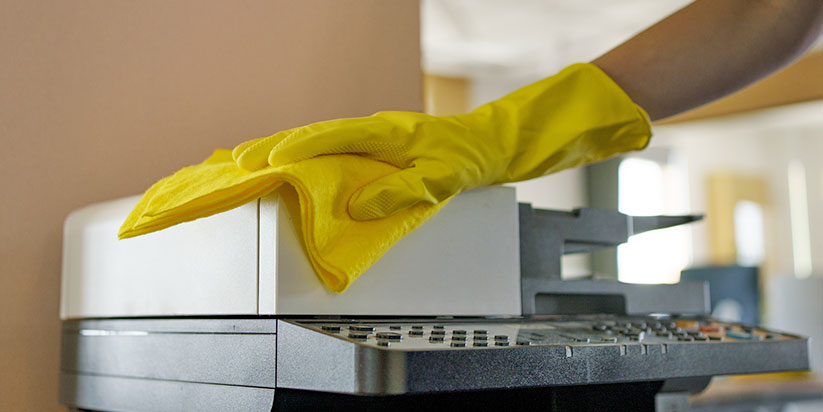
Wipe the housing with a lightly dampened microfiber cloth, then dry it. Do not allow water to enter openings and seams. After this step, the printer is “clean for operation” and will not carry dust into the interior. -
Control panel and display
Use a dry microfiber cloth. If there are stubborn marks, lightly dampen and dry immediately. This protects buttons and the display from damage and clouding. -
Paper input and output trays
Remove the tray (if the model allows), wipe away dust and paper residue. This reduces the likelihood of roller contamination and jams.
This is an easy but important step for more reliable operation and fewer printing issues.
Cleaning paper rollers and the feed area
This part often resolves issues such as “pulling multiple sheets,” “paper skewing,” or “jams”:
-
Accessing the rollers
Open the cover according to the design. If you are unsure where to access them, check the model’s manual (each manufacturer uses a different layout). -
Cleaning the rollers
Rotate the roller by hand (if it rotates freely) and wipe it with a lightly dampened cloth, without pressing hard. Allow it to dry completely before turning the printer back on. After cleaning, the rollers regain grip and feeding becomes more stable. -
Removing paper debris and dust
Check for torn paper fragments along the paper path and remove them carefully. This is one of the most effective preventive measures against jams.
With this simple maintenance, the printer operates more reliably and the lifespan of its mechanical parts is extended.
How to clean the printing system on an inkjet printer?
The key here is to start with software diagnostics rather than immediately performing “deep cleaning,” because every cleaning cycle consumes ink.
Step 1: Check with Nozzle Check
First, run a nozzle test (Nozzle Check) from the printer driver/application. This saves ink and shows whether there is actually a clog.
After the test, you will know whether the issue is truly with the nozzles or elsewhere.
Step 2: Standard head cleaning (Head/Printhead Cleaning)
If the test shows gaps or missing lines, run standard cleaning from the Maintenance/Tools menu. On Epson printers, indicators blink during the cycle and you should not print. On Canon printers, the procedure is started from the Maintenance tab in the driver (Cleaning). On HP printers, cleaning is performed in stages, and it is recommended to move to the next stage only if print quality does not improve.
After standard cleaning, perform another Nozzle Check to confirm the result.
Step 3: Deep cleaning only if necessary
If standard cleaning does not help, use Deep Cleaning (on Canon models) only when necessary, as it consumes more ink.
This step usually restores “missing colors” and faded prints, but it is not intended for frequent maintenance.
Step 4: Manual cleaning of a removable printhead – only if the model allows it
Some models have a removable printhead. HP provides specific instructions/guidelines for manual cleaning of a removable head (in certain situations and models).
After manual cleaning, reinstall the head correctly and perform a test print to ensure everything is working properly.
How to clean a laser printer: toner, drum, and corona wire
Laser printers use different consumables, and the most common “culprits” for lines or spots are the drum unit and the corona wire.
Step 1: Cooling and safety
Before opening, allow the printer to cool for at least 10 minutes. Do not use cleaning materials containing ammonia, alcohol, sprays, or flammable substances.
After cooling, handling is safer and the risk of toner dispersion is lower.
Step 2: Removing the drum and toner unit
Remove the toner container together with the drum according to your model’s instructions. It is good practice to place the unit on a clean, flat surface with a sheet of paper underneath to catch any possible spillage.
This prevents desk contamination and allows you to work more calmly.
Step 3: Cleaning the corona wire
On many Brother models, this is done by sliding the green tab several times from left to right and back. It is important to return the tab to the “home” position; otherwise, vertical lines or streaks may appear.
When done correctly, uniform vertical defects on the page often disappear.
Step 4: Reinstalling the units and testing
Insert the toner back into the drum and return the entire unit to the printer. Close the cover and print a test page.
This confirms that the cleaning was effective and that the units are installed correctly.
Quick reference: what to clean on inkjet vs. laser printers
If you want a 30-second overview of what is “typical” cleaning for each technology, here is a brief comparison:
| Printer type | Most common symptoms | Most effective actions | Important warning |
| Inkjet | missing color, streaks, faded print | Nozzle Check, standard Head Cleaning, Deep Cleaning if needed | cleaning consumes ink; start with Nozzle Check |
| Laser | vertical lines, spots, gray background | cleaning the corona wire, checking the drum/toner unit | do not use ammonia/alcohol/sprays; allow to cool |
Once you know “where to look,” maintenance becomes more predictable and more cost-effective over time.
Common cleaning mistakes and how to avoid them
Some common mistakes often damage the printer or worsen print quality. Here they are:
-
using harsh cleaners, sprays, or flammable substances – especially risky for laser models;
-
running Deep Cleaning too often instead of starting with Nozzle Check and a standard cycle;
-
printing during a cleaning cycle (on inkjet printers) or interrupting the procedure;
-
touching sensitive parts/electrodes or failing to return the corona wire slider to its initial position;
-
turning on the printer before rollers and internal parts are completely dry.
If you avoid these mistakes, the chance of solving the problem on the first attempt is significantly higher.
When you clean the printer in the described order, you resolve the most common issues (streaks, faded prints, jams) with minimal risk and without unnecessary expense. Most importantly, use the device’s built-in functions and move to “stronger” procedures only if tests indicate they are necessary.
FAQ: practical answers when “something doesn’t work”
-
How often should you clean the printer?
External cleaning and trays – when there is visible dust buildup or when the environment changes. Cleaning the printing system – only when print quality deteriorates, not on a schedule, as it consumes ink or toner.
-
Is it normal for head cleaning to consume ink?
Yes. Cleaning procedures use ink, with deeper modes consuming more and therefore should be applied only when necessary.
-
If print quality does not improve after 2–3 cleanings, what should you do?
Stop repeating the process and perform a check. Often the cause is dried ink, an improperly installed cartridge, or a worn consumable—not the need for further cleaning.
-
Can you clean with household alcohol or a universal spray?
It is not recommended. On laser printers, such products can damage components, and on inkjet printers it is safest to use only the methods described by the manufacturer.