





Printed colors often look different from the colors we see on a screen. This is because monitors and printers reproduce colors in different ways. The type of paper, print quality settings, and lighting conditions under which we view the finished document also play a role. Understanding these factors helps us achieve more accurate and predictable results.
What is the difference between RGB and CMYK?
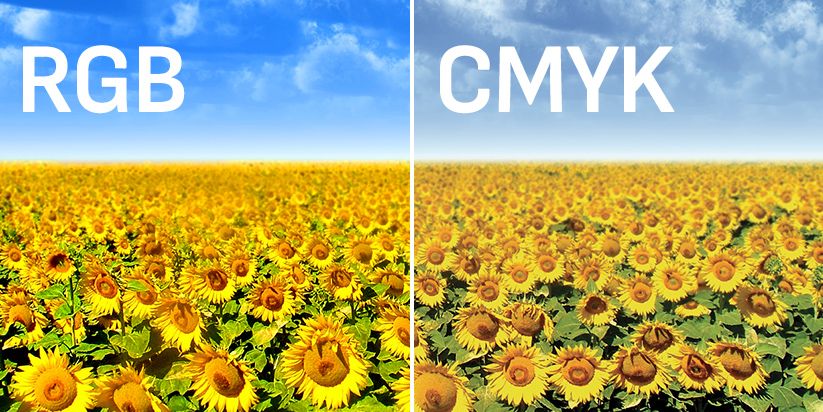
RGB is the color model used by screens – they create colors by emitting red, green, and blue light. CMYK is the printing color model – ink reproduces images by layering cyan, magenta, yellow, and black, which is why an image almost always looks more vibrant on a monitor than on paper.
Monitors use the RGB (Red, Green, Blue) color model, in which images are created by combining red, green, and blue light. The higher the intensity of these three colors, the brighter the result. At maximum intensity, they produce white.
Printing uses the CMYK model, which consists of four colors – cyan (Cyan), magenta (Magenta), yellow (Yellow), and black (Key/Black). Instead of emitting light, ink or toner absorbs some of the light that falls on the paper. Colors are therefore perceived through the light reflected by the sheet.
Another significant difference lies in the color gamut of the two models. RGB can represent vivid shades that standard CMYK printing cannot reproduce accurately. As a result, saturated blue, bright green, and neon colors often appear more muted on paper.
When converting from RGB to CMYK, colors outside the printable gamut are replaced with the closest available shades. ICC color profiles are used to achieve more accurate results by taking into account the characteristics of the specific printer, ink or toner, and paper.
Lighting also affects how colors are perceived. The same printout can look different in daylight and under warm artificial lighting. Therefore, colors are best compared under neutral white light.
How does paper affect printed colors?
Paper is more than just a surface for an image. Its texture, weight, and color determine how printed details and shades will look.
The following characteristics are particularly important:
-
type and finish – glossy paper generally produces more vibrant colors and stronger contrast, while matte paper creates a softer image with fewer reflections;
-
paper weight – heavier paper is generally more resistant to deformation and show-through, but paper weight alone does not guarantee more saturated colors. The coating and absorbency also matter;
-
paper whiteness – cool white paper gives colors a different appearance than cream-colored paper, which makes them look visually warmer;
-
printer compatibility – the paper must be suitable for the relevant printing technology, as inkjet and laser devices have different requirements.
When printing photographs, portfolios, or marketing materials, choosing the right paper is particularly important. A good practice is to print a test page first to evaluate how the colors look on the selected material.
Which print quality settings affect colors?
Even with suitable paper, the final result depends on how the printer processes the image. The most important settings relate to resolution, color management, and the type of content being printed.
Print resolution
Resolution, measured in DPI (dots per inch), determines the level of detail in a printed image. 600 DPI is generally sufficient for standard documents and graphics, while 1200 DPI can provide better reproduction of fine lines and details. However, higher resolution does not guarantee more accurate colors and may increase printing time on some printers.
Color profile
ICC profiles ensure accurate color conversion between the file and the printer. For example, sRGB is a widely used profile for standard digital images, while printing uses an output ICC profile tailored to the specific printer and paper. This reduces color deviations.
It is important not to apply color corrections simultaneously in both the software and the printer, as this can distort the final result.
Mode based on content
Some printers offer Text, Photo, and Text/Photo modes for different types of documents. Text mode prioritizes readability and sharp edges, while Photo mode focuses on smoother color transitions. For documents containing both text and images, the combined mode is generally more suitable.
To achieve good results, these settings should be adjusted to suit both the document and the characteristics of the paper.
With color printing, the most important thing is not for every shade to match the screen perfectly, but for the final result to meet the document's intended purpose. When high quality is required, it is best to evaluate the finished printout rather than relying solely on the image displayed on the monitor. This helps avoid unnecessary adjustments, wasted materials, and disappointment with the final result.